Business idcs
IDCS Application
Setup IDCS Application
Confidential Application
- Sign in to your Oracle Cloud account as an administrator.
- In Oracle Cloud Infrastructure Console, navigate to Identity & Security, and click Domains.
- Select \<Domain>
- Click the name of the identity domain, and click Integrated applications.
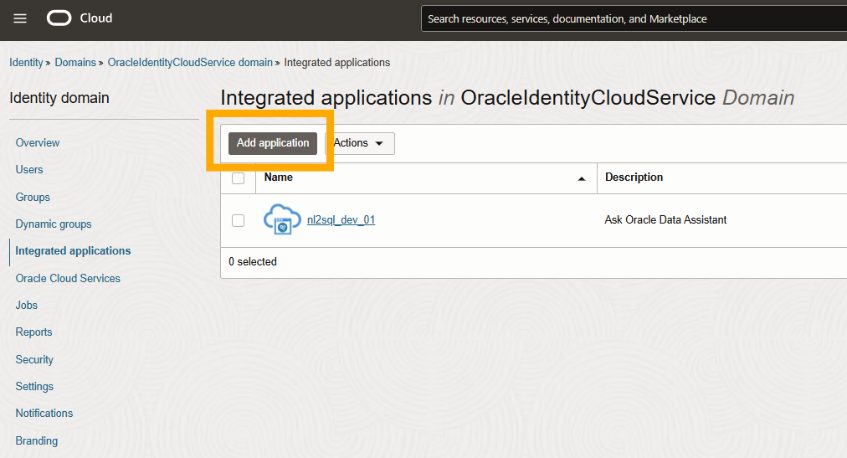
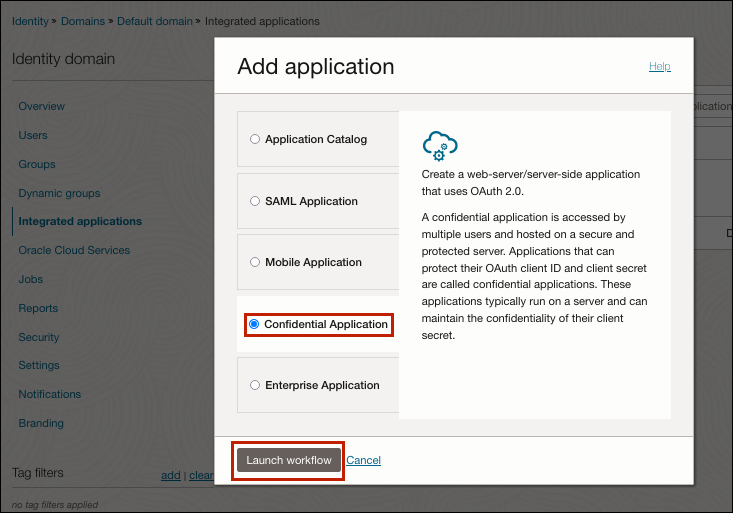
- Click Add application, select Confidential Application, and then click Launch workflow.
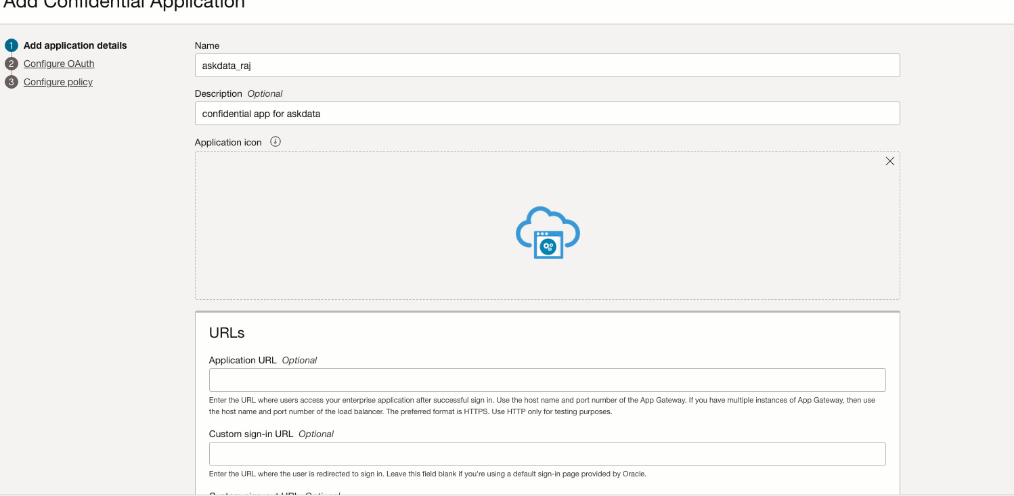
- Enter a name for the application (for example, inception_dev_01), and click Next.
- Select Configure this application as a client now.
- Under Authorization, select the allowed grant types: Resource Owner, Client credentials, JWT assertion, Refresh token, Device code, Authorization code, Implict, SAML2 assertion, and TLS client authentication.
Allow non-HTTPS URLs: Enabled
Redirect URL: \<app url> (for example, http://localhost:5173/callback or your recipe's callback endpoint)
Note: Redirect URL may need adjustment based on your recipe or frontend setup. For local dev, use non-HTTPS; for production, use HTTPS.
### Adding Scopes
- Add a resource server configuration with primary audience "inception"
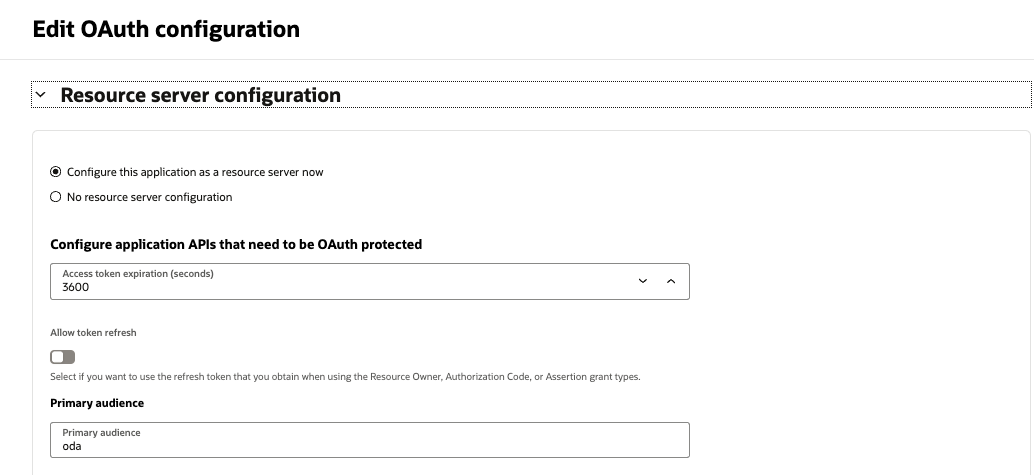
- Add a scope e.g. "inception_scope"
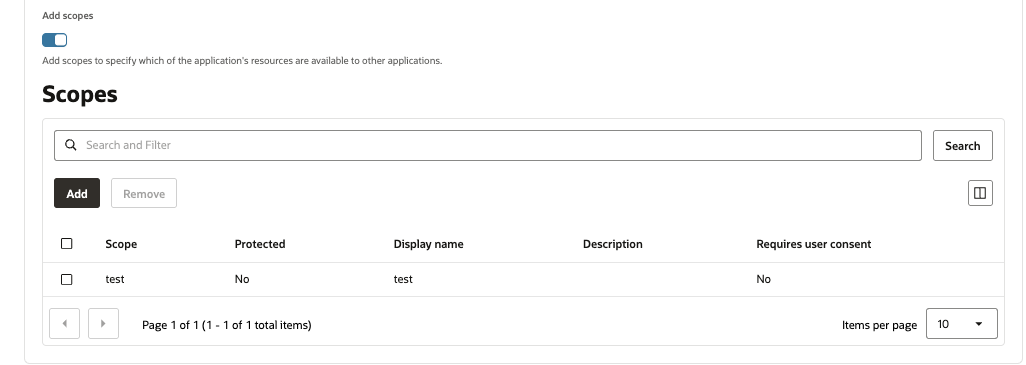
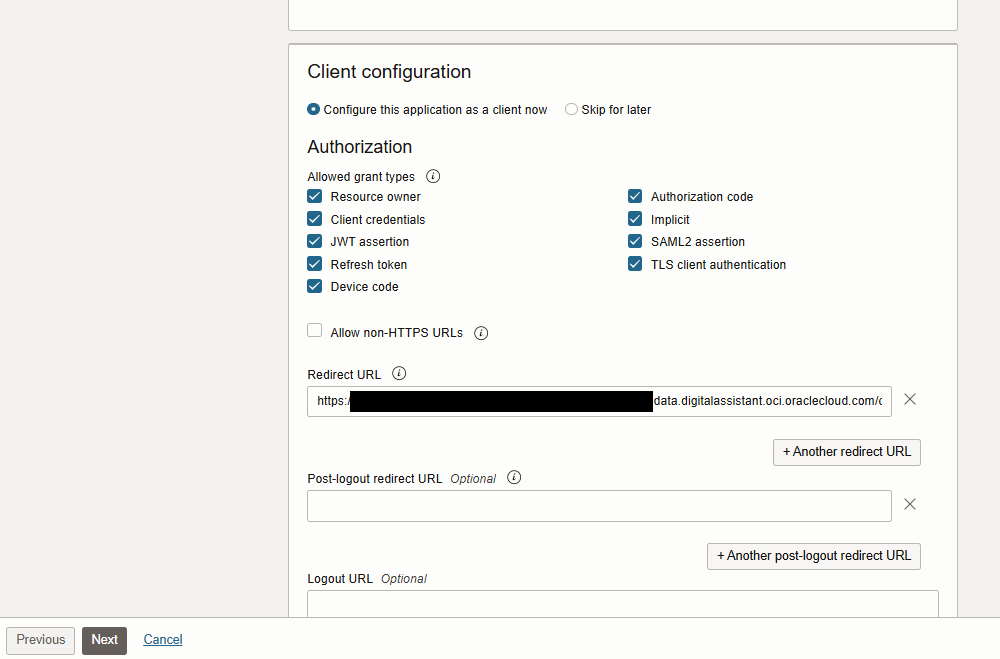
Pick introspect and other options as shown
Client type: Confidential
Allowed operations: Introspect
Client IP address: \<either select nothing or select ‘Anywhere’>
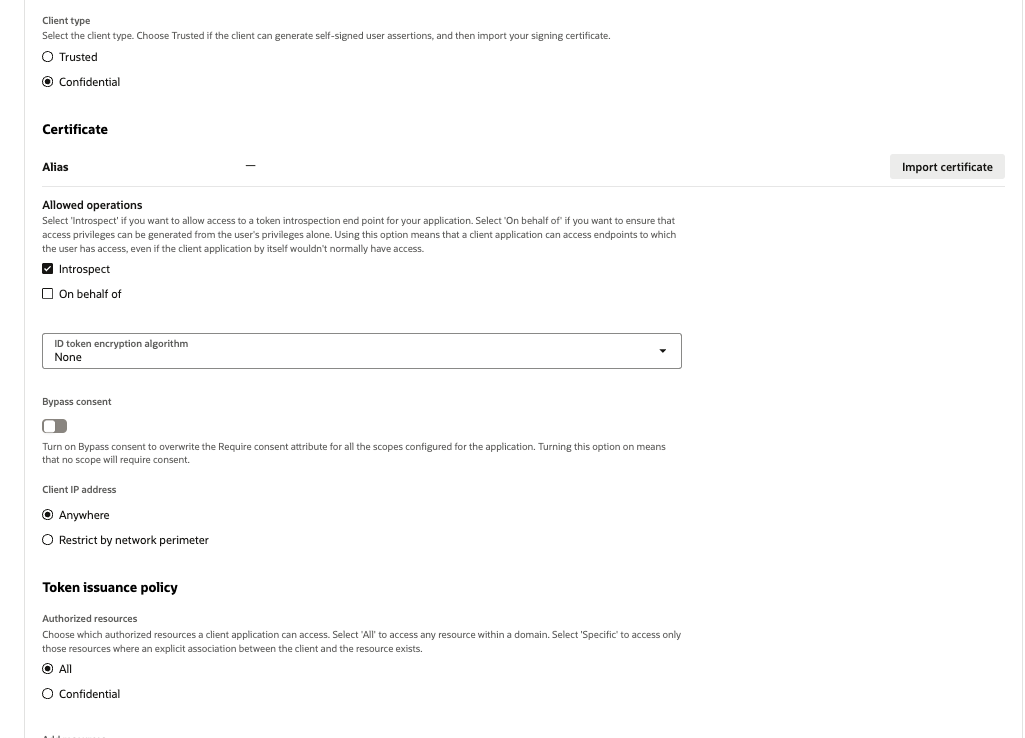
Add the resource server (idcs server) as the resource
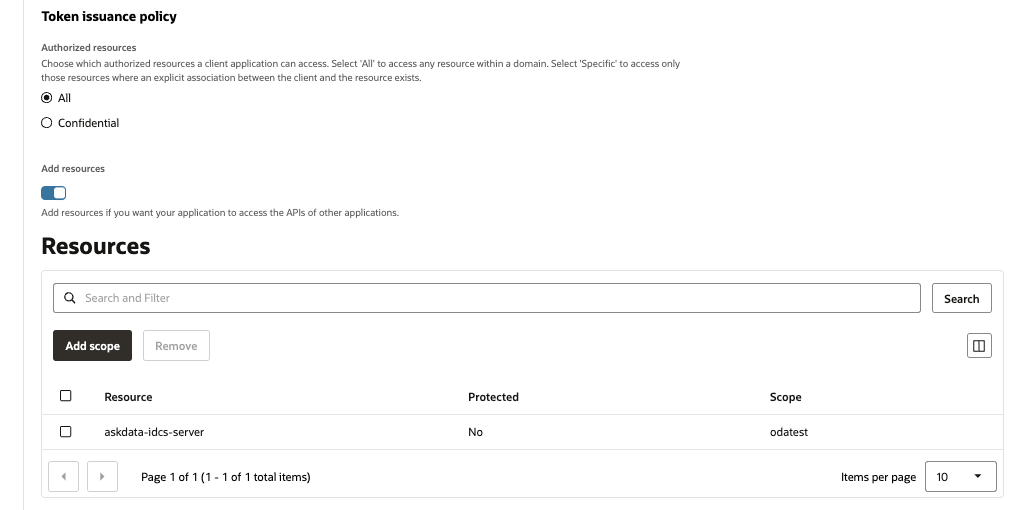
Note If the resource server isn't appearing on the list, try submitting the configuration as is, editing the oauth config, and adding again.
Web tier policy: Skip and do later
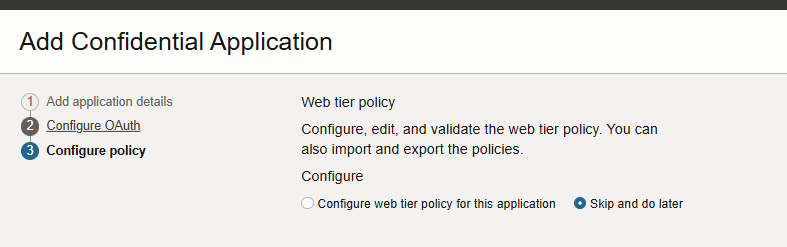
- Click Next, then Finish.
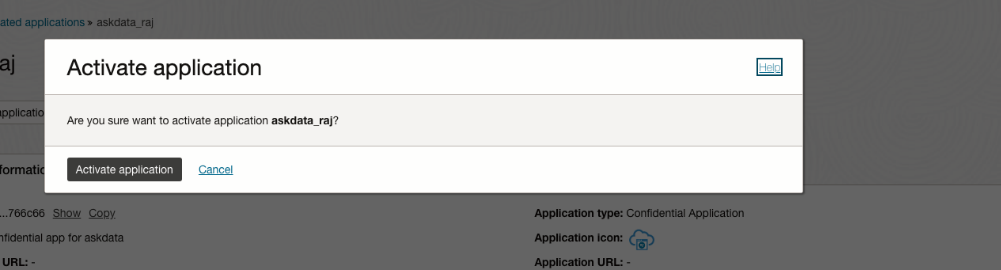
- Click Activate, then Activate Application.